Top iPhone Shortcuts You Didn’t Know About
If you’ve ever wished your iPhone could do more for you—automatically—then Shortcuts is the app you need to explore. Shortcuts allow you to automate everyday tasks, saving time and making your device work smarter. The best part? You don’t need to be a tech expert to get started.
This article focuses on how to access shortcuts, highlights top picks from Apple’s Gallery, shares simple ideas for creating your own, and gives you safety tips for downloading shortcuts online. By the end, you’ll feel confident using shortcuts to make your iPhone truly personal.
Where to find Shortcuts
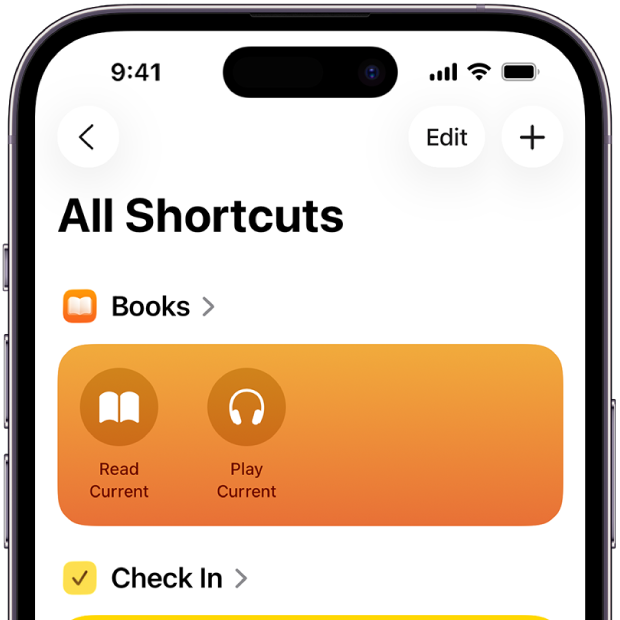
The easiest way to begin is with the Shortcuts app, which comes pre-installed on your iPhone. Inside, you’ll find a Gallery filled with ready-made shortcuts. These are perfect for beginners because they show you what’s possible without requiring any setup.
Here’s why starting with the Gallery is smart:
- You’ll see shortcuts in action, which helps you understand how they work
- You’ll boost productivity immediately with simple, useful automations
- You’ll gain confidence to customise or create your own shortcuts later
Beyond the Gallery, you can also download shortcuts online. Many creators share their custom shortcuts on websites and YouTube. Watching these videos is a great way to learn, and most include download links in the description. Just make sure you trust the source and that the shortcut meets your needs.
Finally, you can create your own shortcuts. This might sound intimidating, but it’s easier than you think. Start small—one action and one automation—and build from there.
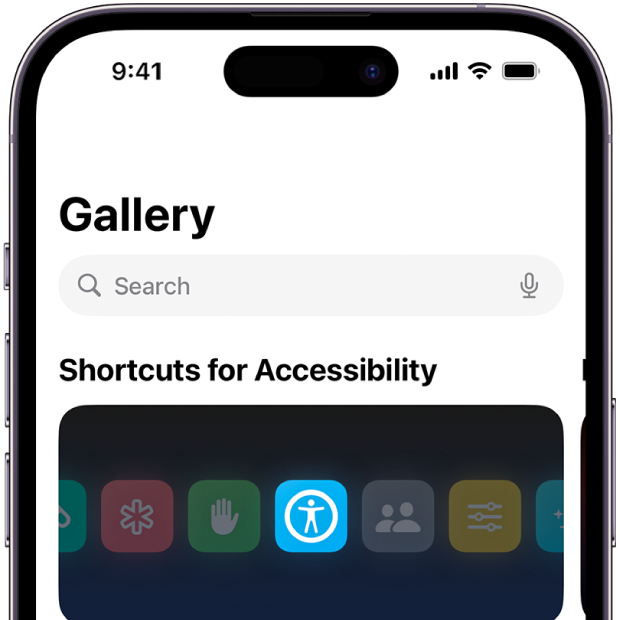
Top picks from the Gallery
Morning Summary
This shortcut gives you a personalised snapshot of your day. When you run it, your iPhone will pull together the weather forecast, your calendar events, and any reminders you’ve set. It uses Apple Intelligence to organise this information in a clear, easy-to-read summary.
Instead of checking multiple apps in the morning, you get everything in one place—saving time and helping you plan your day efficiently.
Summarise PDF
With this shortcut, you can upload any PDF document and let your iPhone summarise the key points for you using Apple Intelligence.
Instead of reading dozens of pages, you get a concise summary in seconds—ideal for busy professionals or students.
Start Pomodoro
This shortcut starts a Pomodoro timer, a popular productivity technique where you work in focused intervals (usually 25 minutes) followed by short breaks. It also enables Focus Mode, silencing notifications until the timer ends.
This helps you stay focused and avoid distractions while working or studying, improving productivity and reducing burnout.
How Many Days Until
This shortcut calculates how many days remain until a specific event or milestone—like your birthday, a holiday, or a project deadline.
Great for planning and motivation, you’ll always know how close you are to important dates without having to count manually.
Break Timer
This shortcut lets you schedule breaks throughout your day, such as coffee breaks, lunch, or mindfulness sessions. You can customise the event timing and duration.
This encourages healthy work habits by preventing burnout and promoting regular rest, which boosts productivity and well-being.
Reading Mode
Activate this shortcut to set a reading timer and automatically open your favourite reading app (like Kindle or Audible) or play a relaxing playlist.
You can create a distraction-free reading environment and stick to your reading goals. Perfect for winding down or learning something new.
Create your own Shortcuts
Once you’re comfortable, try building shortcuts tailored to your life. Here are three easy examples.
Auto-enable mobile data when leaving home Wi-Fi
- Go to Automations > Wi-Fi > Choose your home network.
- Select Wi-Fi Is Disconnected.
- Add action: Set Cellular Data > Turn ON.
- Repeat steps for Wi-Fi Is Joined, but set Cellular Data to OFF.
This ensures you’re always connected without wasting battery or data.
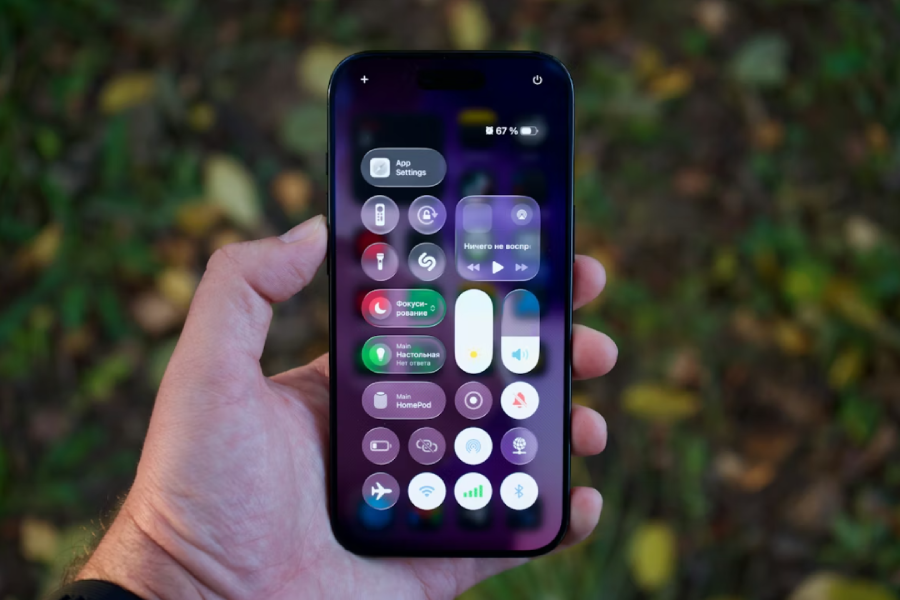
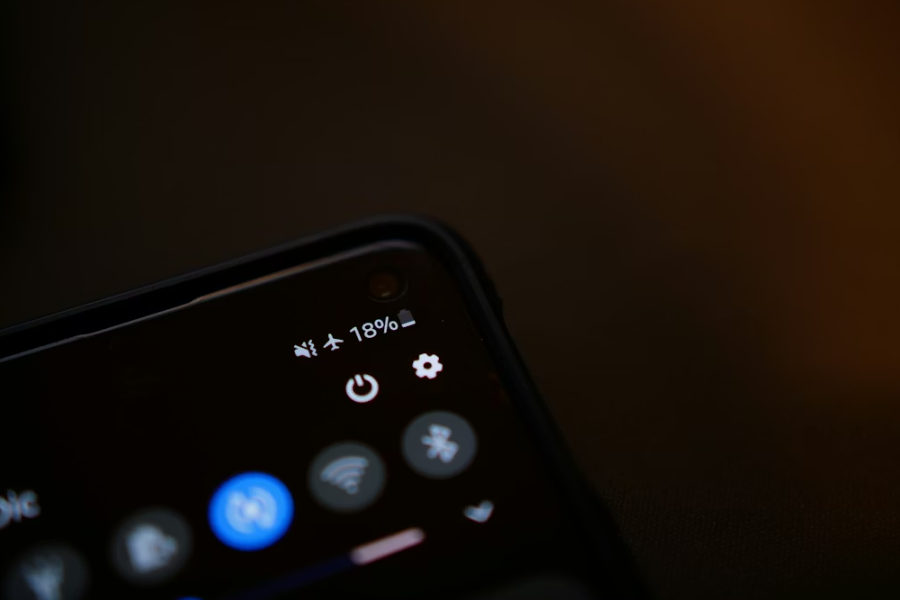
Custom low power mode
Apple’s Low Power Mode is great, but you can make it even better:
- Create a new shortcut.
- Add actions to enable/disable features like Wi-Fi, Bluetooth, Dark Mode, Reduce Motion, and set brightness.
- Save it and run it from Automations whenever you need to conserve energy.
Want to go further? Automate it so your custom Low Power Mode activates when your battery hits a certain percentage.
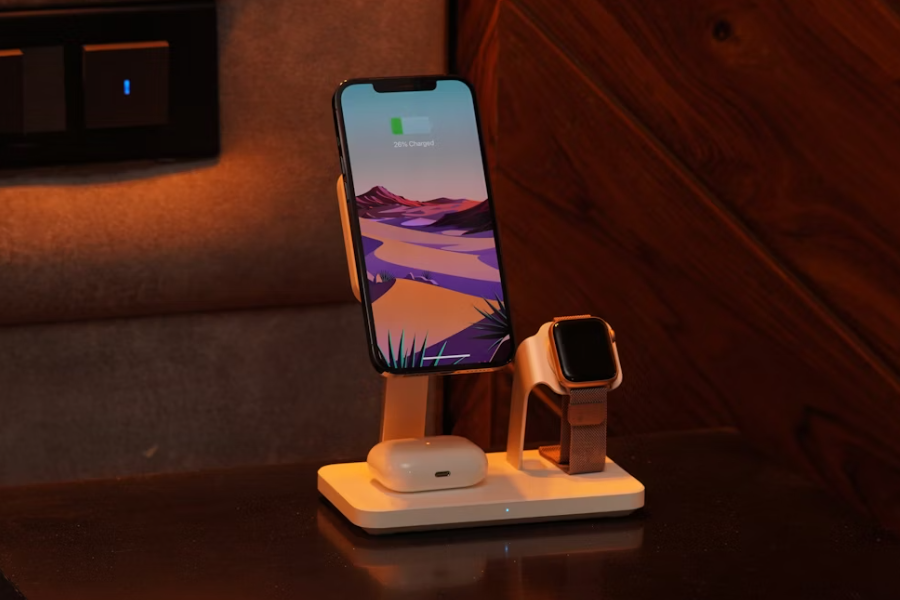
Fun charging automation
Add a personal touch when you plug in your phone:
- Go to Automations > Create Personal Automation.
- Scroll to Charger > Select Is Connected.
- Add action: Speak Text.
- Example: Siri says, “Goodnight, time to recharge.”
Downloading Shortcuts
Downloading shortcuts from the internet can be a great way to expand your options—but it’s important to stay safe. Here are some tips:
- Use trusted sources
Only use reputable websites, forums, or creators with a strong track record. Apple’s own Gallery is the safest starting point. - Check reviews and comments
If you’re downloading from a community or YouTube, read feedback from other users. This can help you spot issues or confirm reliability. - Inspect the Shortcut before running it
When you add a shortcut, tap Show Actions to review its details. Avoid shortcuts that request unnecessary permissions or actions you don’t understand. - Avoid Shortcuts that ask for sensitive data
Never download shortcuts that require passwords, banking details, or personal information unless they come from a verified source. - Update regularly
Shortcuts can break after iOS updates. Make sure your downloaded shortcuts are still functioning as intended.
By following these steps, you’ll enjoy the benefits of shortcuts without compromising your security.
Final thoughts
Shortcuts aren’t just about convenience—they help you save time, stay organised, and make your iPhone truly yours. Start with the Gallery, experiment with downloadable shortcuts, and then create your own. You’ll be amazed at how much more productive (and fun) your phone can be.