Three Ways to Use a Galaxy Tablet as a Second Screen: DeX, Smart View & Second Screen
As work becomes more flexible, people are increasingly relying on mobile devices to stay productive wherever they are. Samsung Galaxy phones and tablets are especially popular for multi‑screen workflows, thanks to features that let you do more than simply view content on a bigger display. Whether you’re working from home, commuting, or squeezing tasks in between meetings, Galaxy devices make it easy to spread your work across multiple screens and stay organised.
Not all multi‑screen experiences are the same, though. Some options mirror what’s on your device, others extend your workspace with extra screen real estate, and some create a full desktop‑style setup designed for multitasking.
There are three practical ways Galaxy devices can act as — or work with — a second screen.
- Samsung DeX with an external display (wired and wireless)
- Smart View and Multi View with a phone, TV, or smart monitor
- Using a Galaxy tablet as a second screen for your PC
Samsung DeX
What is it?
Samsung DeX turns your Galaxy phone or tablet into a desktop‑style workspace when connected to a larger screen. Instead of a stretched‑out mobile display, you get an interface that looks and behaves much more like a traditional PC, with apps opening in separate, resizable windows. It’s designed to make working from a mobile phone more comfortable when paired with an external display, keyboard, and mouse.
What really stands out is how flexible DeX is. You can drag and drop content between apps, use familiar keyboard shortcuts, and even turn your phone or tablet into a touchpad when you don’t have a mouse to hand.
How does it work?
Samsung DeX can be used in two main ways: wired or wireless. Both get you to the same desktop‑style experience, but the setup and feel are slightly different.

 Wired DeX
This method uses a physical connection and is ideal for desk‑based setups or longer work sessions.
What you need:
- A Galaxy phone or tablet that supports DeX
- A USB‑C to HDMI adapter (or hub/dongle) or a USB‑C monitor
- A display with an HDMI port
Step‑by‑step:
- Connect the HDMI cable from your monitor to the HDMI port on your adapter or hub.
- Plug the USB‑C end of the adapter into your Galaxy phone or tablet.
- If you’re using a hub, connect any extra components (keyboard, mouse, power) to the hub’s ports.
- On your device, swipe down from the top of the screen to open Quick Settings.
- Tap Samsung DeX.
- When prompted, select Start DeX on your device and display.
Once connected, DeX launches automatically on the external screen.
You can click the square icon on your phone to turn it into a trackpad, or use a connected mouse and keyboard instead.
You can also open Settings > Samsung DeX to tweak things like screen resolution, font size and whether DeX should start automatically when a cable is connected.
 Wireless DeX
Wireless DeX lets you connect to a compatible smart TV or Miracast display without plugging anything in.
What you need:
- A Samsung smart TV, smart monitor, or Miracast‑compatible display
- Wi‑Fi enabled on both devices
Step‑by‑step:
- Make sure your TV or monitor is switched on and ready to connect.
- On your Galaxy phone or tablet, swipe down to open Quick Settings.
- Tap Samsung DeX.
- Choose Wireless and select your TV or monitor from the list.
- Confirm the connection on your TV if prompted.
DeX will appear on the big screen, while your phone or tablet remains usable as a touchpad or input device. This approach is very convenient and keeps your USB‑C port free, which is handy if you want to charge your device at the same time.
 Things to know
- Wireless DeX can introduce slight lag, so it’s not ideal for tasks that require precision or fast response times
- Not every app is fully optimised for DeX, and behaviour can vary depending on the app
- Some desktop‑style features work best with an external keyboard and mouse rather than touch alone
 When to use
Samsung DeX really shines when you want a PC‑like setup without carrying a laptop. It’s particularly well suited to:
- Desk‑style productivity, such as writing, spreadsheets and email
- Presentations, especially when connected to a larger display
- Multitasking, with several apps open and visible at the same time
If you want your Galaxy device to feel as close as possible to a traditional computer, DeX is the most powerful option available.
Smart View
What is it?
Smart View and Multi View are Samsung features that let you share what’s on your phone or tablet screen with a bigger display, such as a TV or smart monitor. They’re designed to be simple and cable‑free, making them a popular choice for relaxed, everyday use at home.
You’ll most often see them used in living rooms, where it’s handy to throw content up on the big screen without fussing with wires or adaptors.
- No cables needed – everything works wirelessly
- Easy to set up and use, even if you’re not very tech‑savvy
- Great for casual multitasking, like watching a video while replying to messages
- Fits naturally into living‑room setups, alongside TVs or smart monitors
How does it work?
Below is a simple, step‑by‑step guide based on the options you’ll see on Samsung tablets.

Smart View
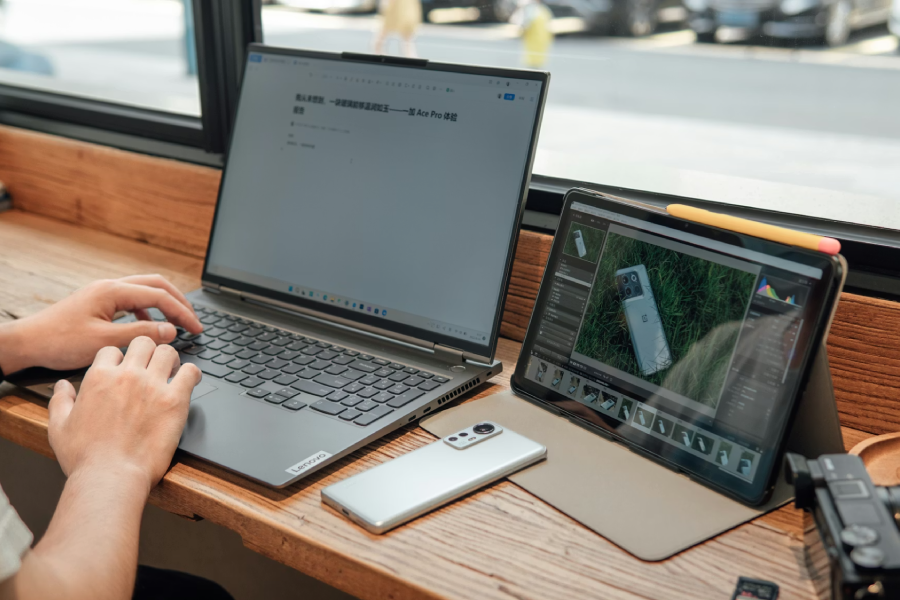
This does exactly what it says on the tin: your phone or tablet screen is mirrored onto the TV or monitor. Whatever you see on your device appears on the bigger display in real time.
This mode is ideal for:
- Watching videos or browsing photos together
- Showing something quickly to other people in the room
- Giving simple presentations or demos

Multi View
Multi View lets you see two things side by side on the TV or smart monitor. For example, you might have TV content playing on one side, while your phone screen appears on the other.
It’s best suited to:
- Light multitasking
- Keeping an eye on messages while watching something
- More relaxed, entertainment‑focused use rather than serious work
Before you start
- Make sure both devices are on the same Wi‑Fi network
- Keep the devices reasonably close to each other for a smoother connection
Turning on Smart View
- On your Samsung tablet, swipe down from the top of the screen.
- You may need to swipe down twice to see more options beyond the initial panel.
- Look for Smart View (common on older models) and tap it to turn it on.
- On newer tablets, Series 7 and up, you’ll see Second Screen instead. If this is the case, please follow steps for how to enable Second Screen.
- Tap the three dots in the top‑right corner of the screen.
- Select Settings.
- Tap About Smart View.
- Tap Smart View repeatedly until a hidden options list appears.
- Switch on Start Second Screen.
- Select Start Second Screen to continue.
Once Second Screen is active, you’ll be asked how you want it to perform:
- Drawing / gaming – prioritises faster response
- Video – focuses on smoother playback
Pick the option that best suits what you’re planning to do.
Connecting and using the screen
- On your computer keyboard, press Windows + K.
- A panel will appear on the right‑hand side showing available devices.
- Click on your Galaxy tablet from the list to connect.
- Your computer display will now appear on the tablet screen.
Making navigation easier
To make moving between screens feel natural:
- Right‑click anywhere on your desktop.
- Select Display settings.
- You’ll see two numbered boxes representing your screens.
- Drag screen 2 (the tablet) to match where it sits physically relative to your main screen.
- Below, above, left, or right – whatever matches your setup.
- Click Apply when you’re happy.
Your screens are now connected, and you can drag apps and windows from one screen to the other.
 Things to know
- This is mainly screen mirroring, not a true extended desktop experience in every scenario
- App‑level control is limited, so not all apps behave perfectly on a second screen
- It’s not built for heavy productivity workflows or long working sessions
 When to use
Smart View and Multi View really shine when you keep things simple. They’re best for:
- Entertainment, like streaming videos or sharing photos
- Light multitasking, such as watching content while chatting
- Presentations or demos, when you just need to get something up on a bigger screen quickly
If you’re after a relaxed, wireless way to share your screen at home, Smart View gets the job done without overcomplicating things.
Second Screen
What is it?
With Samsung’s Second Screen feature, a Galaxy tablet can act as a genuine second display for a Windows PC. Rather than simply mirroring what’s already on your laptop or desktop, your tablet becomes an extra screen you can place apps and windows on – much like adding another monitor, but without taking up more desk space.
This makes it especially useful if you work on the move or want a more flexible setup at home.
- Turns your tablet into a portable monitor
- Great for keeping timelines, notes, chat apps or reference material off your main screen
- Helps you stay organised without buying extra hardware
- Ideal when desk space is limited
How does it work?
Second Screen creates a wireless connection between your Galaxy tablet and a Windows PC. Once connected, the tablet behaves like an extra monitor.
You can:
- Use the tablet as an extended display or a mirrored display
- Interact using touch, peripherals like a keyboard and mouse, or the S Pen (on supported tablets)
What you’ll need
- A Samsung Galaxy Tab S7 series or newer, fully updated
- A PC running on Windows 10 or Windows 11
- Both devices connected to the same Wi‑Fi network
Step 1: Turn on Second Screen on your tablet
- On your Galaxy Tab, swipe down from the top of the screen.
- You may need to swipe down twice to see all quick actions.
- Look for Second Screen and tap it.
- If you don’t see it, your tablet may need a software update.
Please note: for older Galaxy Tabs, you may see the option for Smart View. If this is the case, please follow steps for how to enable Smart View.
- If you don’t see it, your tablet may need a software update.
- Toggle Start Second Screen on.
- Tap Start Second Screen to continue.
- Choose how you want it to perform:
- Drawing / gaming for quicker response
- Video for smoother playback
Leave this screen open while you connect from your PC.
Step 2: Connect from your Windows PC
- On your keyboard, press Windows + K.
- A panel will appear showing available displays.
- Click on your Galaxy Tab from the list.
Your PC screen will now appear on the tablet.
Step 3: Set it up as an extended display
By default, Windows may mirror or duplicate the display. To check or change this:
- Press Windows + K again.
- Choose Extend to use the tablet as a second screen, allowing you to drag apps and windows between screens, or choose Duplicate if you want both screens to show the same thing.
Step 4: Arrange the screens
To make movement between screens feel natural:
- Right‑click on your desktop and select Display settings.
- You’ll see two boxes labelled 1 and 2.
- Drag screen 2 (the tablet) to match where it sits in real life – below, to the side, or above your main screen.
- Click Apply when it feels right.
Please note: if you are unsure which device is labelled 1 or 2, you can click the Identify button in the Display Settings page. The numbers 1 and 2 will flash on each device screen to show you which is which, and will disappear after a few moments.
 Things to know
- Second Screen requires a compatible Galaxy Tab and a Windows PC with the Samsung Second Screen app; macOS isn’t supported
- The Second Screen feature requires Wi‑Fi, so performance can dip with weak Wi-Fi networks, and there’s a small amount of latency compared to a cable-connected monitor
- The display is compressed and streamed, so it’s great for productivity but less suitable for gaming, video editing, or precise colour work
 When to use
The Second Screen feature really shines for anyone integrated in the Samsung ecosystem, due to its ease and compatibility. It’s best for:
- On-the-go productivity, when you need more screen space while traveling, working remotely, or hot-desking
- Reference and companion tasks, such as email, chat apps, notes, timelines, or documentation while your main work stays on the PC
- Touch and S Pen workflows, useful for quick sketches, annotations, or scrolling through content
Samsung Second Screen flexibly turns a Galaxy Tab into extra workspace—boosting productivity for multitaskers, adding portability for mobile workers, and enabling touch or S Pen interaction for more creative or reference-driven tasks.
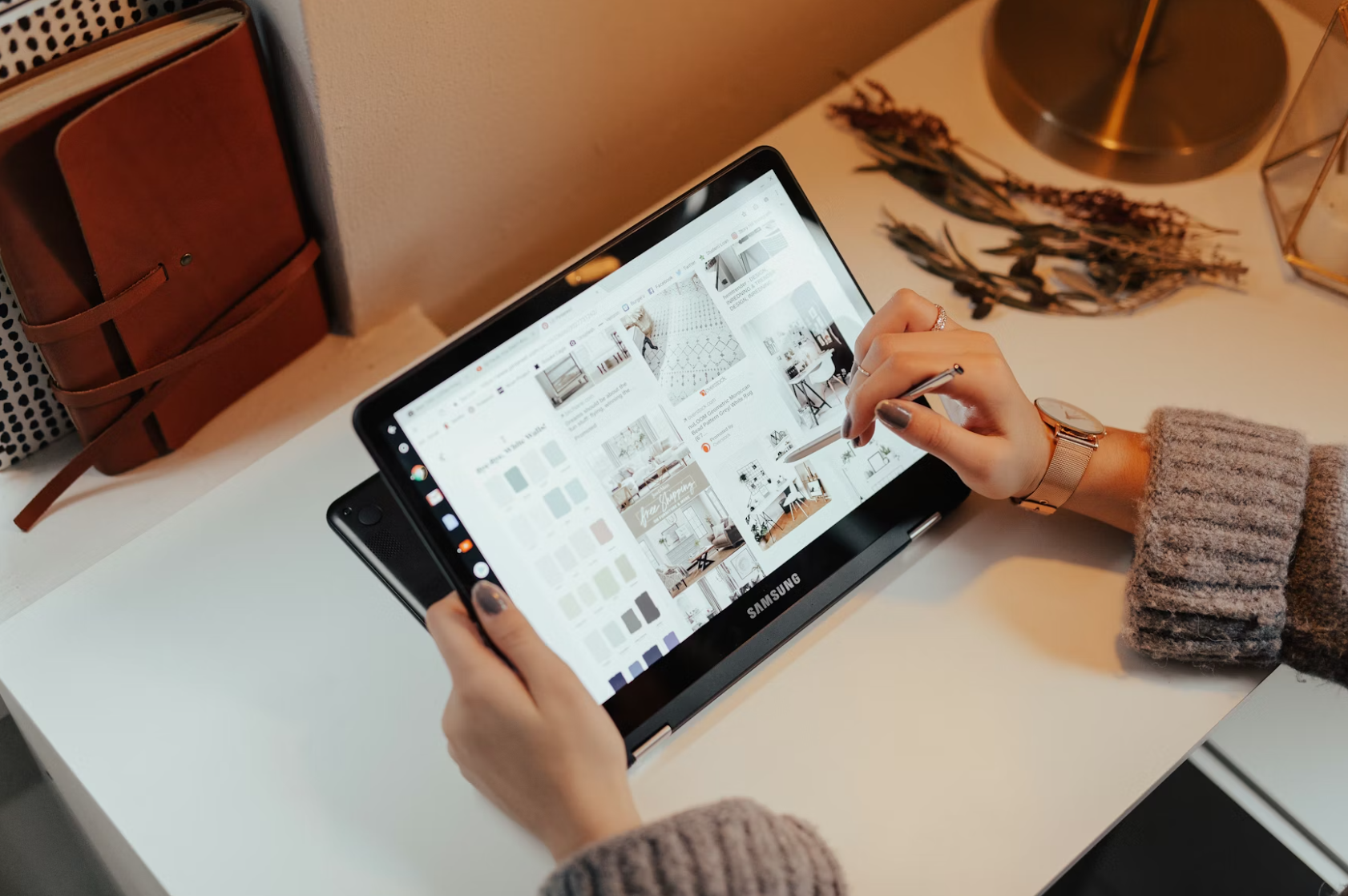 Additional customisation settings for comfort
Explore the three tabs below to fine‑tune your Second Screen setup and tailor comfort, display behaviour, and input options to suit the way you work best.
Make text and icons bigger on the tablet
- In Display Settings, select display 2 (the tablet).
- Scroll to Scale.
- Choose a zoom level (for example, 150% or 175%) for better readability.
Use the tablet in portrait mode
- Open Display Settings on your PC.
- Scroll to Display Orientation.
- Select Portrait.
Removing black bars (if they appear)
If you notice thick bars at the top and bottom of tablet screen:
- Disconnect the tablet.
- Open the Microsoft Store on your PC.
- Search for and install Second Screen.
- Open the app from the Start menu on your PC.
- On your tablet, turn Start Second Screen back on and choose your performance mode.
- Select the tablet when it appears on your PC.
The display should now fill the tablet screen fully.
How do they compare?
If you’re trying to decide between Samsung DeX, Smart View / Multi View, or using a Galaxy tablet as a second screen, this quick comparison should help. Each option has its strengths – it really comes down to how you want to use your screens.
| Feature | DeX | Smart View / Multi View | Second Screen |
| True extended display |
✅ Desktop-style workspace |
❌ Mainly for mirroring or split view |
✅ Works like an extra monitor |
| Wireless support |
✅ On supported devices |
✅ |
✅ Ideal for secondary apps and reference material |
| Best for productivity |
✅ Strong, multi-window work, desktop layout |
❌ Limited, better for casual use |
✅ Ideal for secondary apps and reference matierial |
| External display requirements |
⚠️ Monitor, TV, or PC screen |
⚠️ TV or smart monitor |
✅ No display required, the tablet acts as the extra screen |
| Keyboard / mouse support |
✅ Full support |
⚠️ Limited, optional |
✅ Full support, via PC |
Final thoughts
When it comes to using your Galaxy devices together, there’s no stand-alone best option that suits everyone. DeX, Smart View, and using a tablet as a second screen all do slightly different things – and that’s exactly the point. The right choice depends on what you’re doing, where you’re doing it, and how much flexibility you need.
One of the biggest strengths of the Galaxy ecosystem is that you don’t have to pick just one. You might use DeX for focused work sessions, switch to Second Screen when you need extra space for notes or chat apps, and rely on Smart View for easy entertainment or presentations in the living room. Each mode has its place, and they’re designed to work around your day rather than force you into a single setup.
So, if you’re not sure which one is right for you, try them out in different situations. Experiment with what feels natural for your workflow. That flexibility – moving seamlessly between modes as your needs change – is what really makes the Galaxy experience stand out.
Please note: there may be subtle differences in feature capabilities or functionality depending on the region.