The Dynamic Island – Everything You Need to Know
Apple’s innovation track record is nothing short of impressive, and with the Dynamic Island, they have enhanced multitasking and improved user experience on iPhone. It transforms the notch area into an interactive hub for real-time information, notifications, and controls, bringing powerful functionality and seamless interaction to the forefront of iPhone usage.
If you want to make the most out of your device, here’s everything you need to know.
What is the Dynamic Island?
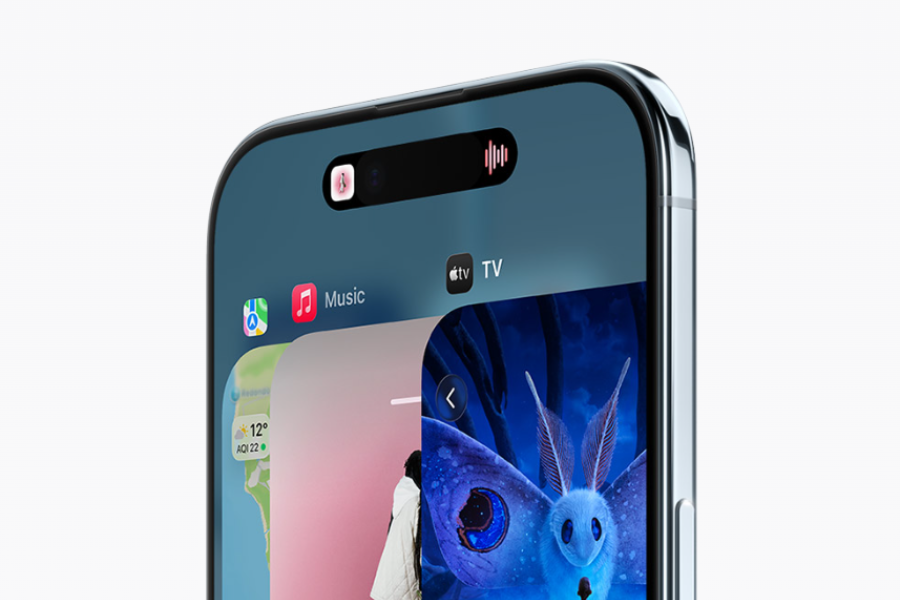
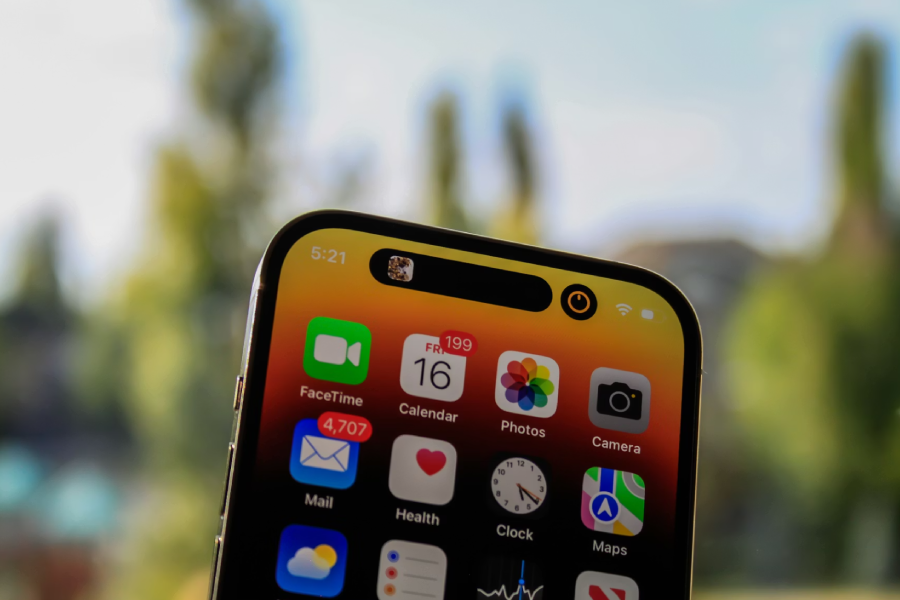
The Dynamic Island is a fluid, adaptive space at the top of your iPhone screen that displays live activities and app interactions. Instead of switching between apps, you can access essential information and controls right from this pill-shaped feature.
Whether you’re checking your AirDrop progress, monitoring a voice recording, or keeping an eye on your navigation directions, the Dynamic Island is your quick-access dashboard. It embodies Apple’s philosophy of blending hardware and software to create fluid and intuitive user experiences.
Which iPhones feature the Dynamic Island?
If you’re considering upgrading your device or if you’re just curious whether your current iPhone has the Dynamic Island, here’s the list of models that support this feature:
- iPhone 14 Pro
- iPhone 14 Pro Max
- iPhone 15
- iPhone 15 Plus
- iPhone 15 Pro
- iPhone 15 Pro Max
- iPhone 16
- iPhone 16 Plus
- iPhone 16 Pro
- iPhone 16 Pro Max
- iPhone 17
- iPhone 17 Plus
- iPhone 17 Pro
- iPhone 17 Pro Max
- iPhone Air
- iPhone 18 Pro
- iPhone 18 Pro Max
- iPhone Duo
Apple has incorporated the Dynamic Island into both Pro and standard models since the iPhone 15 series, showcasing its growing importance in their design philosophy. This move also hints that the Dynamic Island may become a staple feature across future models, making it more than just a novelty.
How to interact with the Dynamic Island
Apple has made interacting with the Dynamic Island intuitive and gesture-based:
Expand the view: press and hold the Dynamic Island, then swipe from the centre to the left or right. This will show more detailed information about the current activity.
Collapse the view: when you want a more compact display, swipe from the left or right towards the centre to minimise the view.
Switch between activities: if multiple activities are active, swiping left or right allows you to switch between them quickly.
Dynamic Island isn’t just about looking good—it’s a productivity powerhouse that centralises live activities and quick controls, saving time and reducing distractions. Designed to make your iPhone experience more intuitive, it offers practical features that enhance everyday tasks and keep you connected effortlessly. Here are some of the ways you can make the most of it.
Multitasking made easy
Dynamic Island supports up to two apps running in the background:
- Track a timer while listening to music
- Note: two timers in the same Clock app won’t appear separately
- Check the battery level of your AirPods at a glance—no need to dive into Settings
Quick actions
- Tap once to open the app in full screen
- Tap and hold for a preview window with limited controls
- Swipe back and forth to dismiss or bring info back
Alerts and notifications
Stay informed without interruptions. Dynamic Island displays critical alerts like:
- Incoming calls
- Low battery warnings
- Face ID prompts
All appear at the top of your screen, so you never miss important updates while staying focused on your current task.
Track live activities
Dynamic Island integrates with popular apps for seamless updates:
- Uber & Lyft: See pickup time and ETA during your ride
- Food Delivery Apps: Track your order’s arrival time
- Parking Apps (e.g., RingGo): Monitor remaining parking time
- Sports Apps: Pin games to track start times and scores
- Workout Apps: Display rest timers between reps
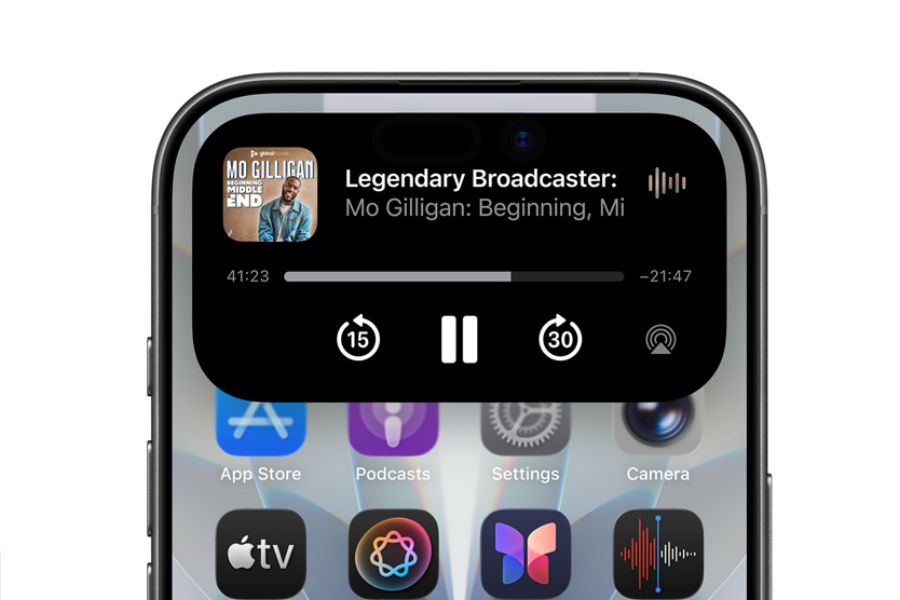
Media playback controls
Listening to music or podcasts? Dynamic Island makes it easy:
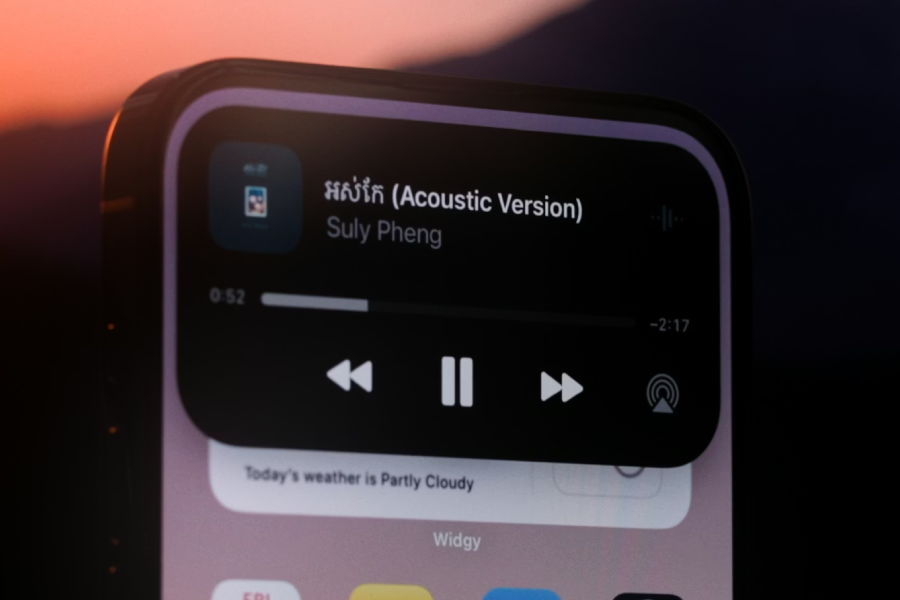
- Displays track info, album art, and playback controls
- Tap and hold for quick actions like play, pause, and skip
- On Spotify, soundwaves even match the album art’s colour, adding a visual touch
- If an AirPlay device is nearby, you’ll see a pop-up to connect instantly
Navigation and shortcuts
- Maps (Apple and Google): view your next turn and tap for more details
- Torch controls: adjust brightness and beam width—up/down for strength or dimness, left/right for spread of the light
Dynamic Island on the iPhone 18 Series and iPhone Duo
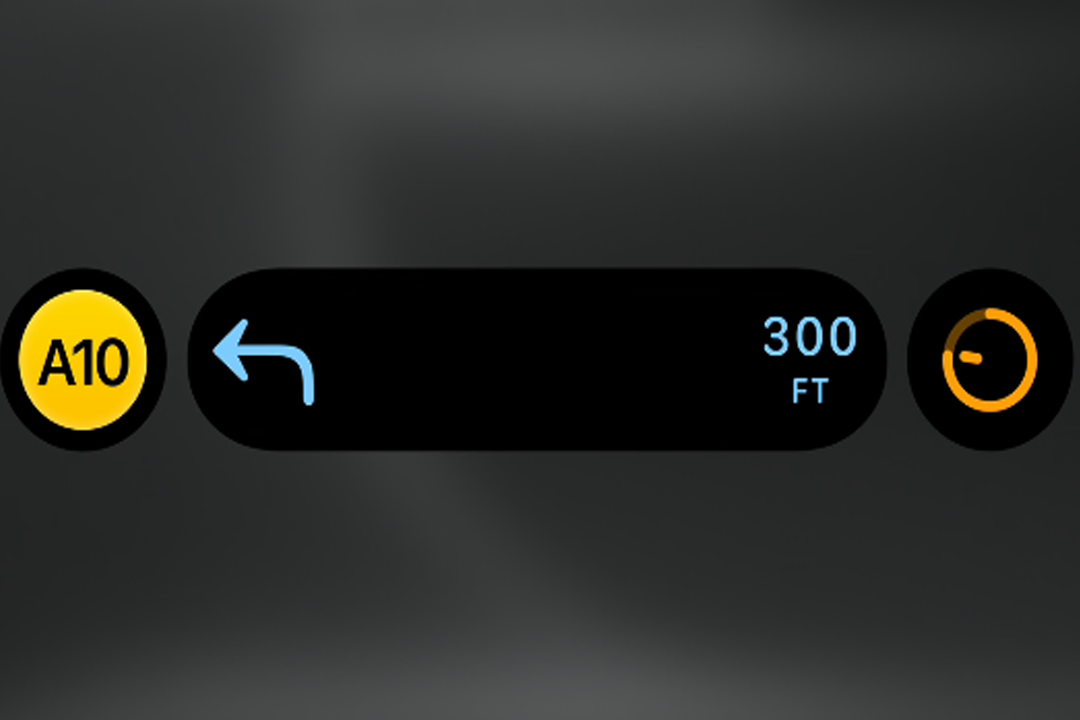 The iPhone 18 Pro and Pro Max both feature a redesigned Dynamic Island that takes up less space while providing more information.
 For the first time, the Dynamic Island can display up to three Live Activities at once. This is an improvement from the previous maximum of two Live Activities at once, and is achieved through an even sleeker design.
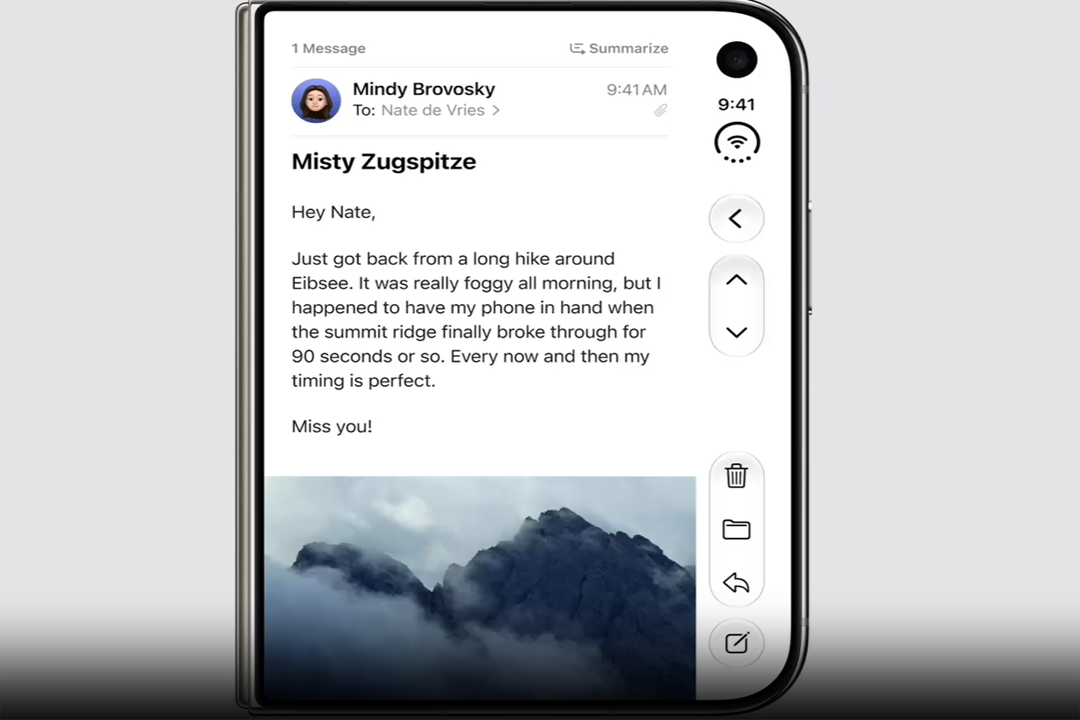 The Dynamic Island was redesigned to fit the foldable form factor of the iPhone Duo. It fits vertically along the sides of the inner and outer displays and expands to show alerts and live activities.
 The iPhone Duo marks the first time the Dynamic Island has shifted from the top of the display to the side. This offers an exciting glimpse into how the Dynamic Island might continue to evolve.
Can you turn off the Dynamic Island?
The short answer is no, you cannot permanently turn off the Dynamic Island. Apple has designed it as an integral part of the iPhone interface, and while you can’t disable it entirely, there are ways to manage its visibility.
When a Live Activity is ongoing, you may choose to hide the Dynamic Island. To do so, swipe horizontally across it to conceal it temporarily. While hidden, no activity details will appear, and a generic pill-shaped placeholder will be shown instead. This feature is helpful for decluttering your screen, but keep in mind, it only provides a short-term fix.
Final thoughts
The Dynamic Island is a testament to Apple’s ability to seamlessly merge form and function. It represents a thoughtful evolution of the interface—bringing real-time updates, multitasking, and quick controls right to your fingertips.
As more apps adopt Live Activities and develop creative integrations, the Dynamic Island’s utility will only grow, making it an increasingly integral part of the iPhone experience. For users who value efficiency, seamless multitasking, and intuitive design, this feature is worth exploring.