What to do if Your Phone is Faulty: How to Troubleshoot Common Smartphone Problems
A faulty phone can be a major disruption. Whether you're unable to make calls, send messages, or simply get through the day on a single charge, smartphone issues can have a huge impact on your daily life.
The good news is that not every phone problem points to a serious fault. Many issues can be understood and potentially resolved by following a few simple checks. This guide will explore what to do if your phone isn't working as it should, from identifying the issue to deciding your next steps.
Phone not charging
Charging issues can stop your phone from charging, cause it to charge intermittently, or make it charge much more slowly than usual.
This issue can often be ruled out by external factors, such as the power source or charger. Alternatively, it may indicate issues with the charging port or an internal battery fault.
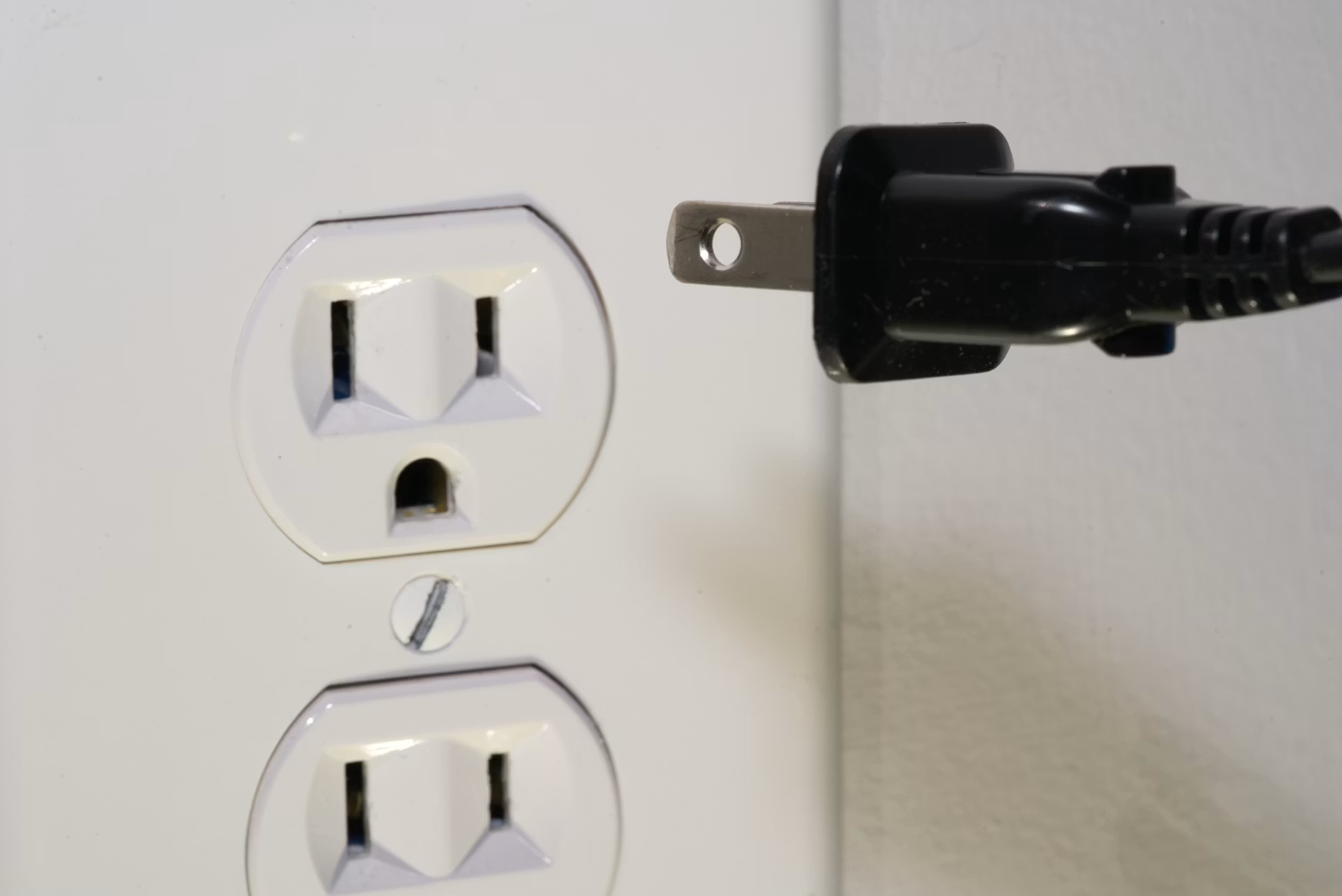
Try charging your phone from a different wall socket, USB port, or power bank. If charging starts normally, then the original power source was likely the problem.
Faulty charging cables or power adapters are a common cause of charging issues.
Try:
• A different charging cable
• A different power adapter
• An official or manufacturer-approved charger
If charging works with a different charger, replace the original faulty charger.
Inspect the charging port
Check the charging port for:
• Signs of moisture
• Bent or damaged connectors
• Debris
If you find signs of moisture, place your device in a dry space with the port facing down for a few hours.
If the port appears damaged or loose, it needs repair.
If you find debris, carefully remove it by taking the following steps:
1. Turn off your device
2. Wrap a small piece of cotton around the tip of a toothpick
3. Lightly blow compressed air into the charging port with a straw; ensure not to blow for longer than 2 seconds at a time
4. Gently insert the cotton-lined toothpick into the charging port and slowly drag it along the inner walls of the port
5. Lightly blow compressed air into the charging port with a straw to remove the loosened debris, still ensuring not to blow for longer than 2 seconds at a time
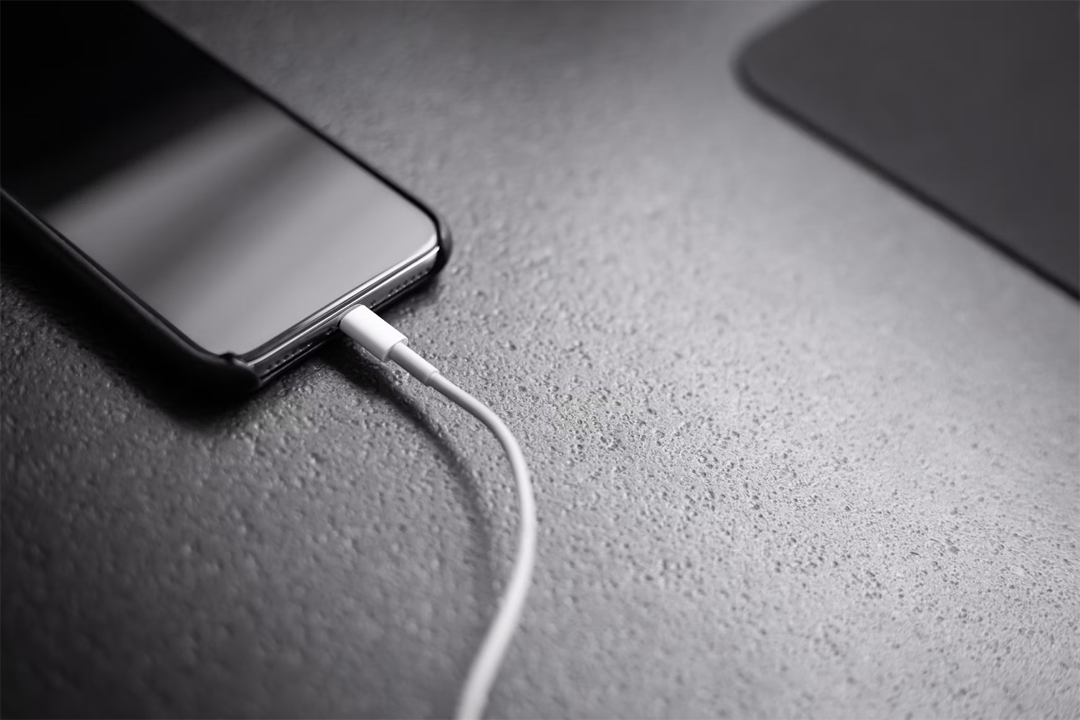
If your phone still won’t charge after following the above steps, the issue may involve the charging port, battery, or internal charging components. Please seek further guidance from a professional.
Texts or calls won't go through
If you're unable to send or receive messages or make calls, the problem can be ruled out by an issue on a specific recipient’s end. Otherwise, the fault could be caused by network connectivity or SIM issues.
Rule out recipient issues
Try to send messages to several different contacts. If you’re able to send and receive messages with other contacts, the issue is likely with the original recipient.
For calls, try calling other contacts. If calls to these contacts go through correctly, the issue is likely on the original recipient’s side.
Check your connection
Many messaging and call features rely on a stable mobile network connection.
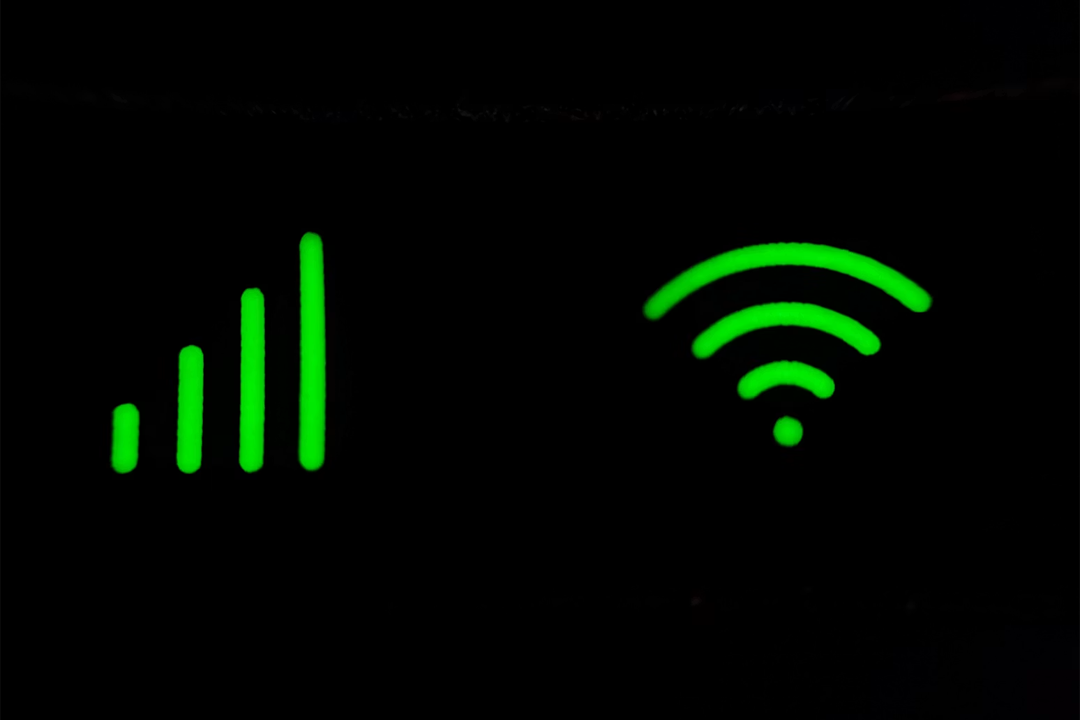
If your texts or calls aren’t working, check your:
• Network signal strength
• Mobile data status
• Airplane mode status
If you have little or no signal:
• Move to an area with better coverage
• Restart your phone
• Check for network outages
Check your SIM or eSIM
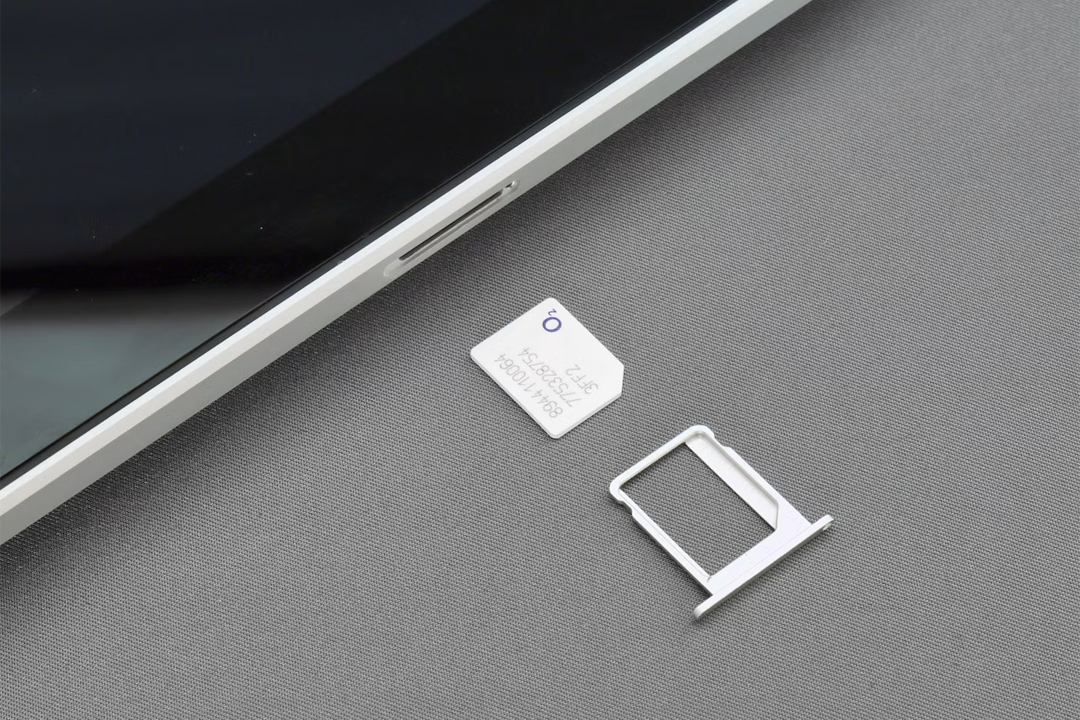
Check whether:
• Your SIM is detected
• Your mobile plan is active
• Your SIM is still in the process of activating
If your SIM isn't recognised:
• Carefully follow manufacturer guidance to remove and reinsert the SIM
• Review eSIM activation settings
• Contact your network provider if activation appears incomplete
Check your settings
Your settings may be impacting your texts and calls.
Check for:
• Do Not Disturb
• Wi-Fi Calling
• Call Forwarding
Follow your manufacturer's guidance to tailor the relevant settings to your needs.
If your texts and calls still aren’t working after completing the above steps, try resetting your network settings. If the issue persists, your device may have a more serious underlying fault; speak to a professional for a proper diagnosis and repair.
Battery problems
Battery issues can cause your battery percentage to drop rapidly, your phone to shut down unexpectedly, or make your phone require frequent charging.
Whilst phone batteries gradually degrade over time, a battery issue could be caused by software settings or damage to the battery itself.
Check battery use
Open your battery settings and review which apps are using the most power.If specific apps are responsible for unusually high battery usage, try the following:
• Restrict background activity
• Update the app
• Remove the app if battery issues continue
Review settings
Some settings can lead to increased battery consumption, including:
• High screen brightness
• Disabled Auto-Lock
• GPS and location tracking
• Bluetooth
Disable or limit these settings to improve battery life.
Check battery health
Most modern smartphones provide battery health information in their settings. Samsung phones offer battery information with clear guidance, whilst Apple shows a percentage of the maximum battery capacity. Apple recommends replacing batteries with a maximum capacity below 80%.
If the battery issues continue after taking the above steps, or your device regularly shuts down unexpectedly, a battery replacement from a trusted professional may be required.
Connection issues
Phone connectivity issues can take many forms. Perhaps your Wi-Fi, mobile data, or Bluetooth won’t connect, or maybe your connectivity regularly drops regardless of connection type.
In some cases, connectivity issues may be caused by the external network or device, rather than your phone itself. Alternatively, it may be caused by your network settings or a hardware fault.
Identify the impacted connection
Determine whether the problem involves:
• Wi-Fi
• Mobile data
• Bluetooth
• Multiple connection types
Problems affecting multiple connection types may indicate a more serious underlying issue.
Test another network or device
This helps determine whether the problem is with your phone or the network itself.
Try to:
• Connect to a different Wi-Fi network
• Pair a different Bluetooth device
If the connection works on a different network or device, it suggests the issue was likely with the original network or device, not your phone.
Restart the connection
Try turning the impacted service off and back on.
For example:
• Disconnect and reconnect the Wi-Fi• Disable and re-enable mobile data
• Restart Bluetooth
If the issue was a temporary glitch, this should resolve it.

Review network settings
Your phone’s network settings may be interfering with your ability to connect.
Check the following:
• Mobile data status
• VPN settings
• Preferred network type
• Saved network credentials
Follow the relevant troubleshooting guidance for your specific device, or reset to the default network settings.
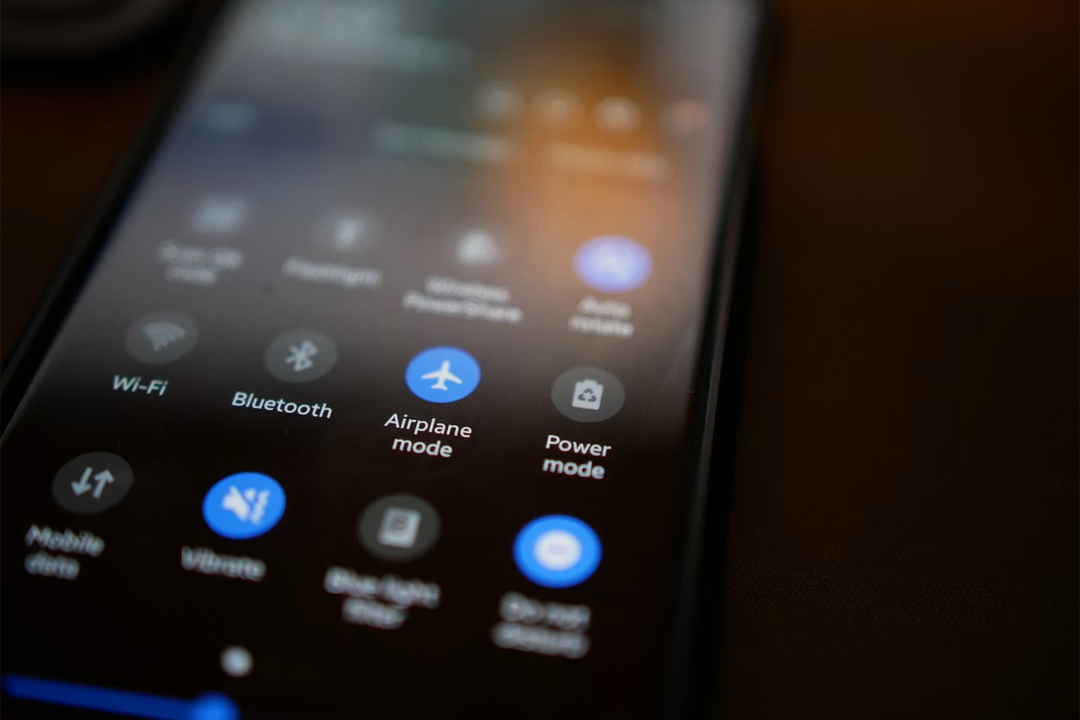
If connectivity problems impact all networks and devices you test, even after following all the relevant troubleshooting steps, a hardware fault might be responsible. In this case, seek a trusted professional for diagnosis and repair.
Poor performance
If your phone is slow, glitching, or overheating, there may be an underlying performance issue. This can be attributed to software settings or potential internal damage.
Head to your storage settings and check for:
• Large apps or files
• Photos
• Unused apps
If your storage is nearly full, freeing up space may resolve the issue, as low storage can affect your phone’s overall performance.
Check your settings and complete any available software updates, as this can help resolve underlying software issues.
Consider problem apps
Whilst using your phone, be mindful of any apps that could be causing the issue.
Pay attention to:
• Apps that frequently crash
• Apps that trigger overheating
• Apps consuming excessive battery
If a specific app appears responsible, update it and see if the situation improves. Uninstall the app if it continues to cause performance issues.
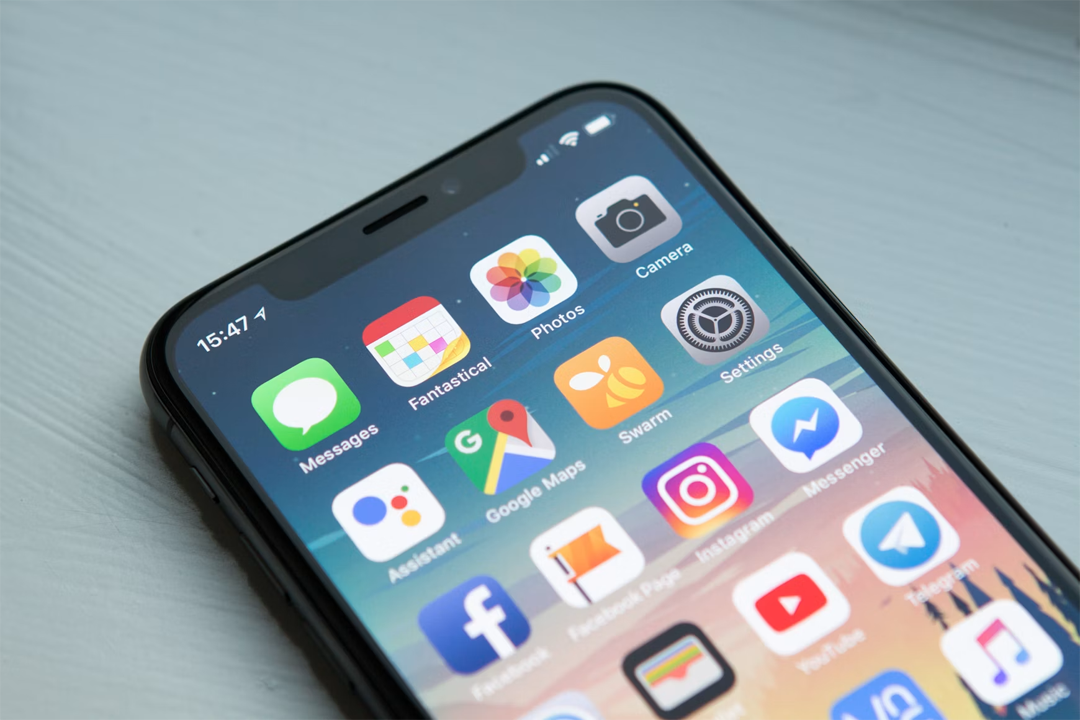
If you’re still experiencing performance problems after freeing up storage, removing problematic apps, and fully updating your software, your device may have internal damage. In this case, seek a trusted professional for a diagnosis and repair.
Display issues
Display issues can include flickering, unusual colours, lack of touch responsiveness, or a black screen. In some cases, these issues can be ruled out by reviewing your display settings. Otherwise, screen faults are often caused by physical impact, liquid damage, or hardware failure.
Inspect your device for any physical damage, including:
• Cracks, dents, or other signs of impact
• Moisture, water or other signs of liquid damage
Restarting your device can resolve temporary display glitches caused by software issues. However, if the issue persists, it indicates a more serious underlying problem.
Review display settings
In some cases, your display might be affected by your device settings rather than any faults.
In your settings, check:
• Brightness levels
• Adaptive brightness settings
• Display refresh settings
Follow relevant guidance for your device to troubleshoot your display settings.
Test touch functionality
Tap the display in different areas to get a better gauge of the overall functionality.
Check for:
• Areas that don't respond
• Delayed inputs
• Responsiveness to a lack of touch
If your device has inconsistent touch responsiveness or responds without any input, a touchscreen hardware issue may be present.
If you continue to experience display issues after following the guidance above, back up your data as soon as possible and seek professional repair.
Final thoughts
Phone problems can be frustrating, but they don't always indicate a major fault. With a little time and the right information, you can reconnect with confidence, as many issues can be easily resolved with a few simple checks or troubleshooting steps. Whatever happens, there’s always the peace of mind that you can seek professional repairs if there’s a serious underlying fault.
Whether you’re troubleshooting your phone yourself or getting a professional repair, you’re helping reduce electronic waste by prolonging your device’s lifespan, saving on the costs of a new device and making a meaningful difference to the environment.