What to do if Your Phone is Faulty: How to Troubleshoot Common Smartphone Problems
A faulty phone can be a major disruption. Whether you're unable to make calls, send messages, or simply get through the day on a single charge, smartphone issues can make everyday tasks harder. The good news is that not every phone problem points to a serious fault. Many issues can be narrowed down and potentially resolved by following a few simple troubleshooting steps.
This guide will explore what to do if your phone is experiencing problems, from identifying the issue to deciding on your next steps. Just scroll to the section that best matches your symptoms to get started.Disclaimer
If at any point you notice signs of damage, overheating, or battery swelling, or if the problem persists after completing the troubleshooting steps, please seek advice from a trusted professional or your manufacturer.
Before you begin
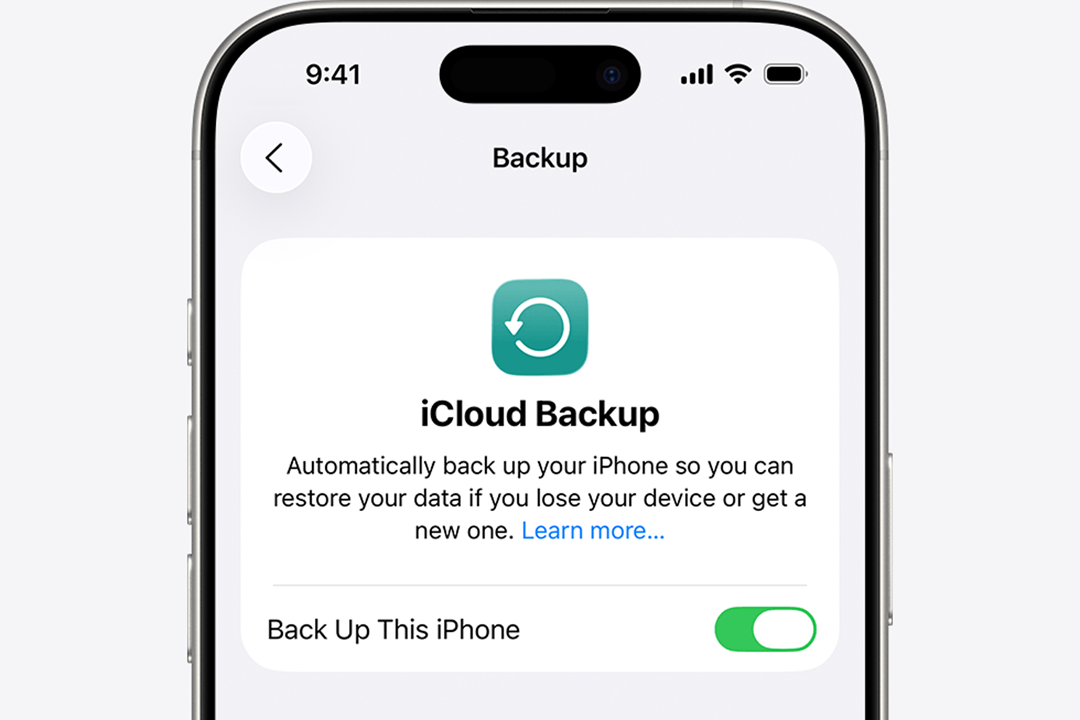
Before starting any troubleshooting steps, it’s recommended to fully back up your data to avoid losing important files, photos, or videos. You can do this by physically connecting your device to an external USB drive, laptop, or PC. Alternatively, go to your phone’s Settings and select the Backup or Cloud options: consult your manufacturer's guidance for more specific instructions.
Image courtesy of support.apple.com
Phone won't charge or charges slowly
Charging issues can stop your phone from charging, cause it to charge intermittently, or make it charge much more slowly than usual.
Charging issues are often caused by external factors, such as the power source, charging cable, or power adapter. Alternatively, the problem may involve the charging port, battery, software, or another internal component.
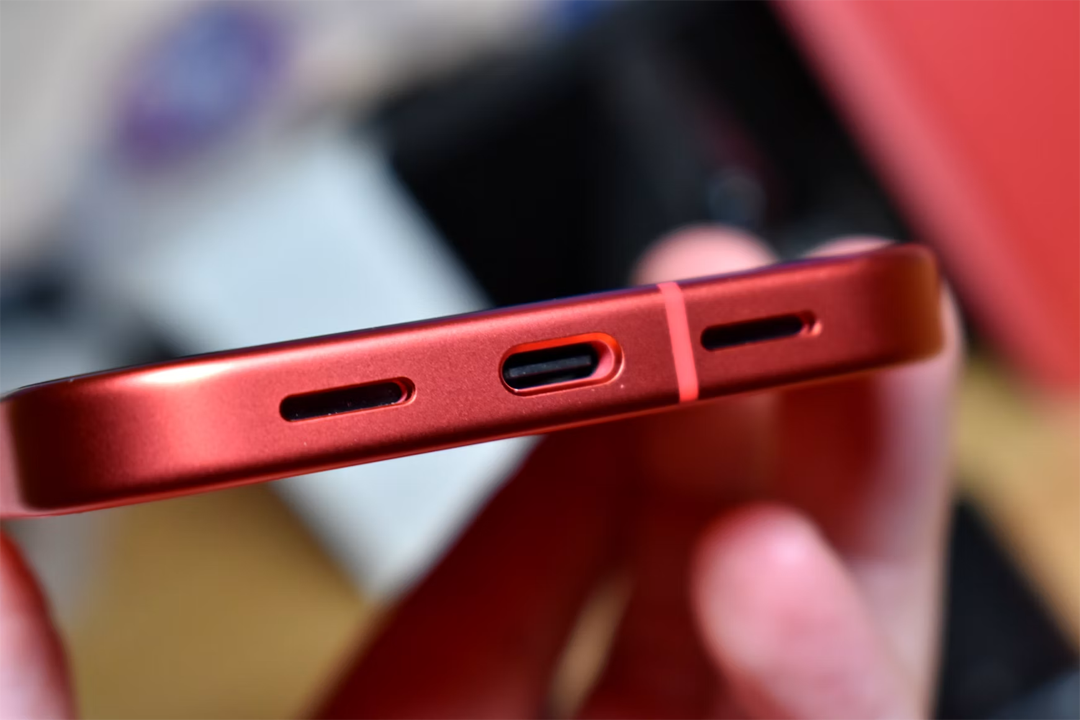
Inspect the charging port
Check the charging port for:
• Signs of moisture
• Bent or damaged connectors
• Debris
If you believe there may be moisture in your charging port, even if it is not visible, avoid charging your device, as this can be dangerous. If you find signs of moisture, place your device in a dry space with the port facing down for a few hours, then seek your manufacturer's guidance on next steps.
If the port appears damaged or loose, avoid forcing the charger in and seek professional repair guidance.
Check the power source
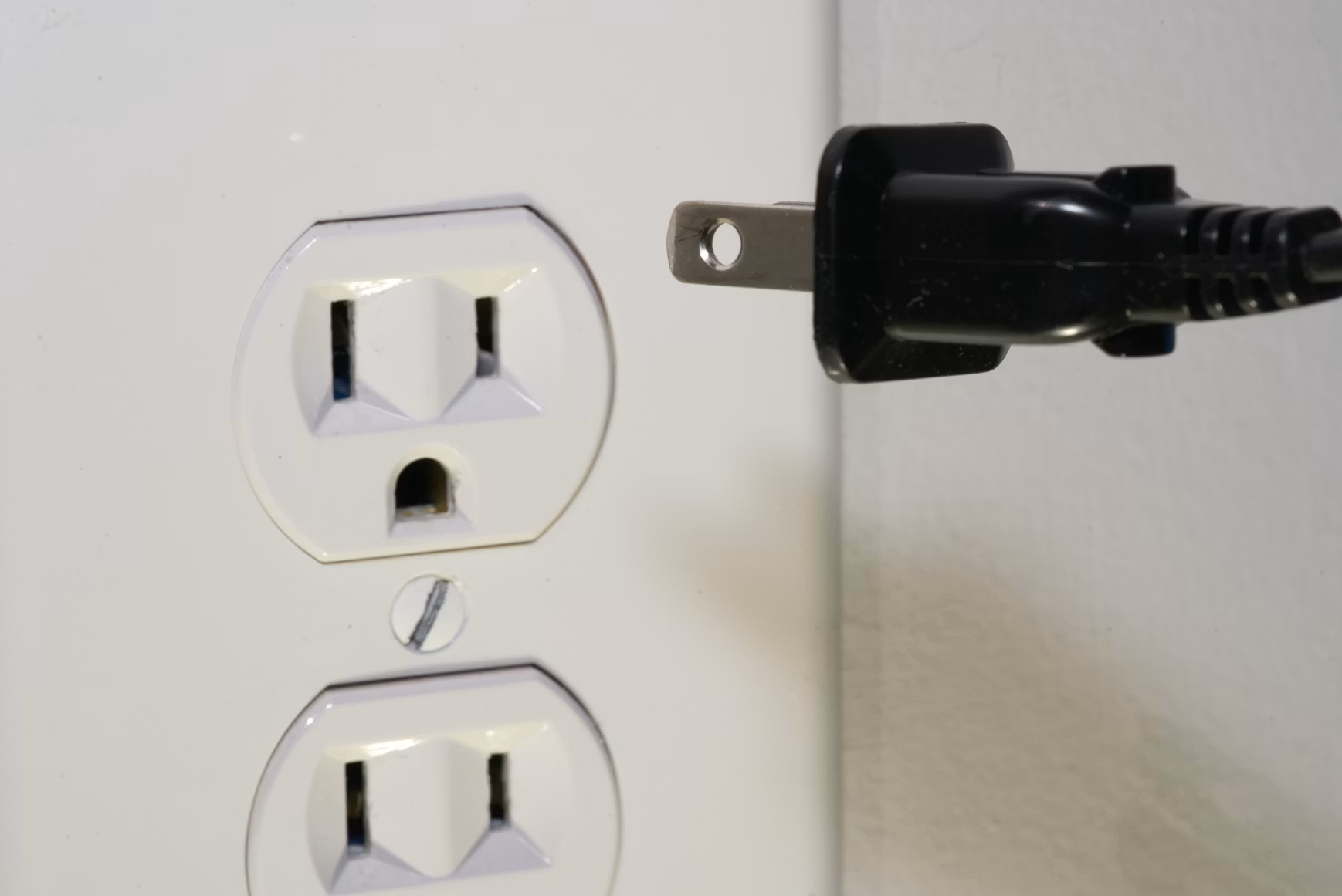
Try charging your phone from a different wall socket, USB port, or power bank. If charging starts normally, then the original power source was likely the problem.
Check the charging cable and adapter
Faulty charging cables or power adapters are a common cause of charging issues.
Try:
• A different charging cable
• A different power adapter
• An official or manufacturer-approved charger
If charging works with a different compatible charger, the original cable or adapter may be faulty and should be replaced.
If your phone still won’t charge after following the above steps, the issue may involve the charging port, battery, or internal charging components. In this case, seek guidance from a trusted repair professional or your device manufacturer.
Texts or calls are not working
If you're unable to send or receive messages or make phone calls, you may be able to determine that the problem is due to a specific contact or recipient. If the issue affects multiple contacts, it could be caused by network coverage, SIM/eSIM activation, device settings, or a phone fault.
Check your mobile signal and network connection
Standard call and SMS messaging features rely on a stable mobile network connection.
Check your:
• Airplane mode status: if airplane mode is on, it will block your ability to connect to your mobile network
• Network signal strength: a poor signal can disrupt your mobile network connection, preventing calls or SMS messages from working
• Mobile data or Wi-Fi connection: messaging apps like WhatsApp require mobile data or Wi-Fi to send or receive messages and make calls
If you have little or no signal:
• You may be in an area with poor coverage, such as a city with high congestion, or a more rural area with obstructions like hills or trees between you and the mobile mast—if possible, move to a more neutral area with better coverage, such as a small town
• Restart your phone
• Check for network outages via your provider's service status page
Check your SIM or eSIM
Check whether:
• Your SIM is detected
• Your mobile plan is active
• Your SIM or eSIM is still in the process of activating: there may be delays or temporary downtime after activating an eSIM or swapping or inserting a physical SIM
• For Dual SIM devices, you should check that your intended SIM is selected as the default
If your SIM isn't recognised:
• Carefully follow manufacturer guidance to remove and reinsert the SIM
• Review eSIM settings: check if it is installed, enabled, selected, or pending activation
• Contact your network provider if activation appears incomplete
Check call and message settings
Some phone settings can block, redirect or limit calls and messages.
Check for:
• Do Not Disturb
• Wi-Fi Calling
• Call Forwarding
• Roaming Settings
• Contact Settings, including blocked numbers
Disable any settings that may be blocking calls or messages. If unsure, reset to the default settings using your manufacturer's guidance.
Rule out recipient issues
Try to send messages to several different contacts. If you’re able to send and receive messages with other contacts, the issue is likely with the original recipient.
For calls, try calling other contacts. If possible, ask someone to call you to assess whether incoming calls are affected as well. If these calls work correctly, the issue is likely with the original recipient.
If your texts and calls still aren’t working after completing the above steps, try resetting your network settings—but be aware that this may remove saved Wi-Fi networks, Bluetooth pairings, VPNs, and mobile network settings. If the issue persists, seek out professional support for further diagnosis and possible repair.
Phone won't connect or is struggling to maintain network connections
Phone connectivity issues can take many forms. Perhaps your Wi-Fi, mobile data, or Bluetooth won’t connect, or your connection keeps dropping across them.
In some cases, connectivity issues can be caused by the external network or device, rather than your phone itself. However, if the problem persists across multiple Wi-Fi or mobile data networks or Bluetooth-connected accessories, there may be an underlying issue with the phone’s internal hardware. In this case, seek your manufacturer's advice or professional repair.
Identify which connection is affected
If you’re unable to get online, there may be issues with your Wi-Fi or mobile data connections. Alternatively, if you can’t connect to wireless earphones, your Bluetooth connectivity may be at fault.
Determine whether the problem involves:
• Wi-Fi
• Mobile data
• Bluetooth
• Multiple connection types
Wi-Fi, mobile data and Bluetooth rely on different services and components. If multiple connection types are affected, there may be an underlying software or hardware issue.
Test another network or accessory
This helps determine whether the problem is with your phone or the network itself.
Try to:
• Connect to a different Wi-Fi network
• Pair a different Bluetooth device
If the connection works on a different network or device, it suggests the issue was likely with the original network or device, not your phone.
Turn the affected connection off and on again
Try turning the impacted service off and back on.
For example:
• Disconnect and reconnect the Wi-Fi
• Disable and re-enable mobile data
• Disconnect and reconnect Bluetooth
If the issue is caused by a temporary error, this may resolve it.
Review network settings
Your phone’s network settings may be interfering with your ability to connect.
Check the following:
• Mobile data status
• VPN settings
• Saved network credentials
Follow the relevant troubleshooting guidance for your specific device. It may be necessary to reset to the default network settings, but be aware that this may remove saved connections and preferences across Bluetooth, Wi-Fi, VPNs, and mobile networks.
If connectivity problems impact every network and device you test, or your phone cannot detect any Bluetooth, Wi-Fi, or mobile networks, a hardware fault might be responsible. In this case, seek a trusted professional for diagnosis and repair.
Battery drains quickly or device shuts down unexpectedly
Battery issues can cause your battery percentage to drop rapidly, your phone to shut down unexpectedly, or make your phone require frequent charging.
While phone batteries gradually degrade over time, battery problems can also be caused by app activity, software settings, charging habits, or extreme temperatures.
Check battery use
Open your Settings and find the Battery section to review which apps are using the most power. Check for unusual background activity or apps using more battery than expected.If specific apps are responsible for unusually high battery usage, try to:
• Restrict background activity
• Update the app
• If the app continues to drain your battery, it could be worth uninstalling it if you do not need it
Review settings
Certain settings can lead to increased battery consumption, including:
• High screen brightness
• Disabled Auto-Lock or an extended screen timeout setting
• GPS and location tracking
• Bluetooth
Reduce or turn off these settings when you do not need them to improve battery life.
Check battery health
Many Android phones offer diagnostic battery information. Similarly, iOS provide Battery Health information, including the percentage of maximum battery capacity. For iOS devices, it is recommended to replace the battery if the maximum capacity is below 80%.
Image courtesy of support.apple.com
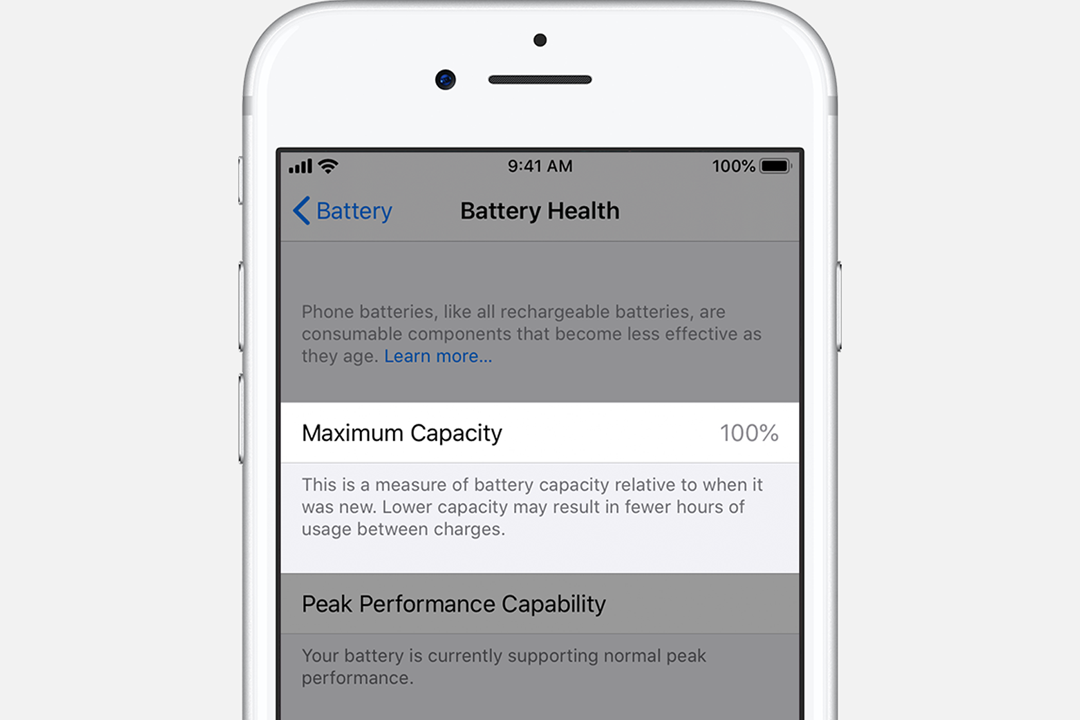
If the battery issues continue after taking the above steps, or your device regularly shuts down unexpectedly, a battery replacement from a trusted professional may be required.
If your phone feels unusually hot, the battery appears swollen, or the device casing is lifting, stop using the phone and seek professional guidance immediately.
Phone is slow, crashing, or overheating
If your phone is freezing, lagging, crashing, or overheating, there may be an underlying performance issue. This can be caused by low storage, outdated software, certain apps, heavy background activity, extreme temperatures or internal damage.
Check whether storage is almost full
Check for:
• Large apps or files
• Large photo or video files
• Apps you no longer use
Low storage can affect your phone’s performance, so if your storage is nearly full, consider freeing up space to resolve the issue. You can do this by deleting unwanted photos, videos, or apps.
If you still want access to your files, back up your photos or videos to the Cloud, as this allows you to access them without storing them on your device.
Check for software updates
Check your settings and complete any available software updates, as this can help resolve underlying software issues.Be sure to back up your data and connect to a reliable Wi-Fi network and power source before updating your device.
Check whether a specific app is causing the issue
Try to notice whether the problem occurs after opening a specific app, installing a new app, or running several apps at once.
Pay attention to:
• Apps that frequently crash
• Apps that trigger overheating
• Apps consuming excessive battery
If a specific app appears responsible, update it and clear its cache if your device supports this. If the issue persists, consider uninstalling the app if you do not need it.
If you’re still experiencing performance problems after freeing up storage, removing problematic apps, and fully updating your device, there may be an underlying software or hardware issue. In this case, seek a trusted professional for a diagnosis and repair.
If your phone ever becomes too hot to touch, shuts down due to overheating, or displays frequent temperature warnings despite regular external temperatures, stop using the device until it cools down and seek guidance from your manufacturer.
Screen is flickering, discoloured, unresponsive, or black
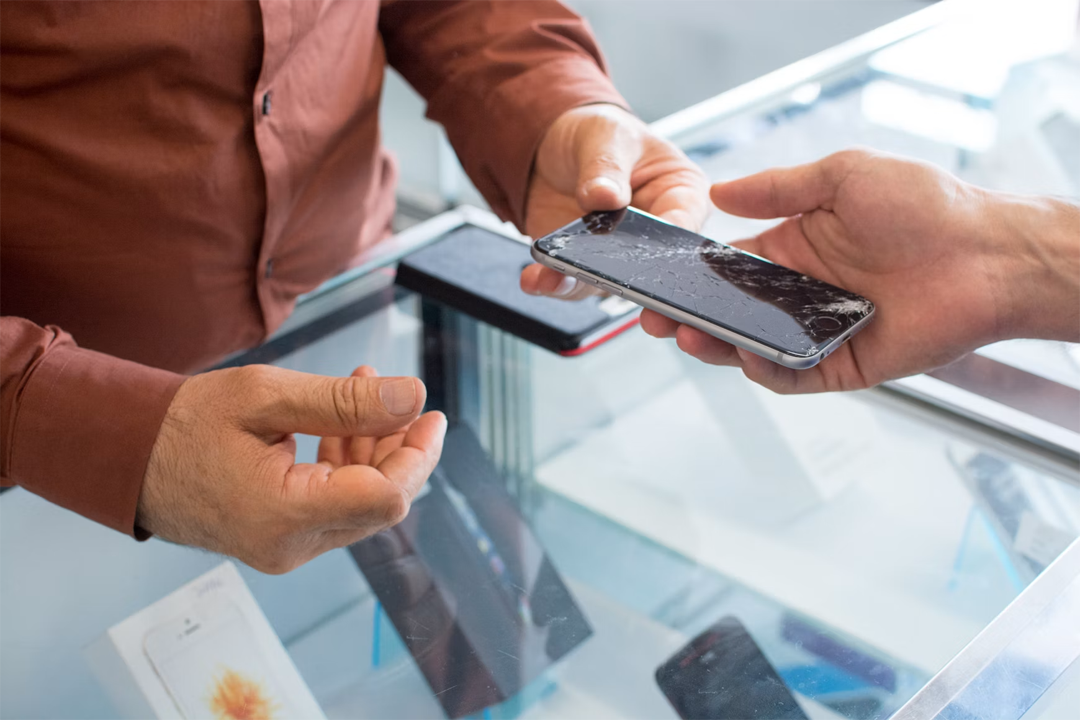
Display issues can include flickering, unusual colours appearing, a lack of touch responsiveness, or a black screen. Some display issues can be linked to display settings or temporary software glitches, but if troubleshooting steps don't work, the cause may be physical impact, liquid damage, or hardware failure.
Check for physical damage
Consider whether your device has experienced any physical impact or water damage; for example, you might have recently dropped your phone or accidentally submerged it. Even if you are unaware of any damage, incidents like excessive moisture exposure, such as leaving your phone in the bathroom while showering, could still have affected your device.
Physical damage isn’t always visible, but check for:
• Cracks, dents, or other marks of impact
• Moisture or other visible signs of liquid damage, such as water marks
If you find signs of physical damage, please reach out to a trusted repair professional.
Restart the device
Restarting your device can resolve temporary display glitches caused by software issues. If the issue persists, it may point to a deeper software or hardware problem.
Review display settings
In some cases, your display might be affected by your device settings rather than any faults.
Check the following settings:
• Brightness or adaptive brightness settings, which can affect dimming
• Refresh rate settings (if available on your device), which can affect smoothness or cause flickering
• Accessibility settings, which can affect colour or display appearance
Follow relevant guidance for your device to troubleshoot your display settings. If you're unsure what is causing the issue, reset to the default display settings.
Test touch functionality
Tap and swipe different areas of the screen to check whether the issue affects a specific area or the entire display.
Check for:
• Areas that don't respond
• Delayed inputs
• Inputs registering when you are not touching the screen
If your device has inconsistent touch responsiveness or responds without any input, this may be caused by screen protectors or cases, trapped moisture, or dirt. Remove any screen protectors or cases and clean the screen with a soft, dry cloth.
If you continue to experience display issues after following the guidance above, back up your data as soon as possible and seek professional repair.
Final thoughts
A faulty phone can be stressful, but taking a systematic approach and following proper troubleshooting steps can help you identify the issue and decide your next move. Regularly backing up your data and confidently addressing any potential future problems can keep your phone reliable for longer and help you get the most out of your device.